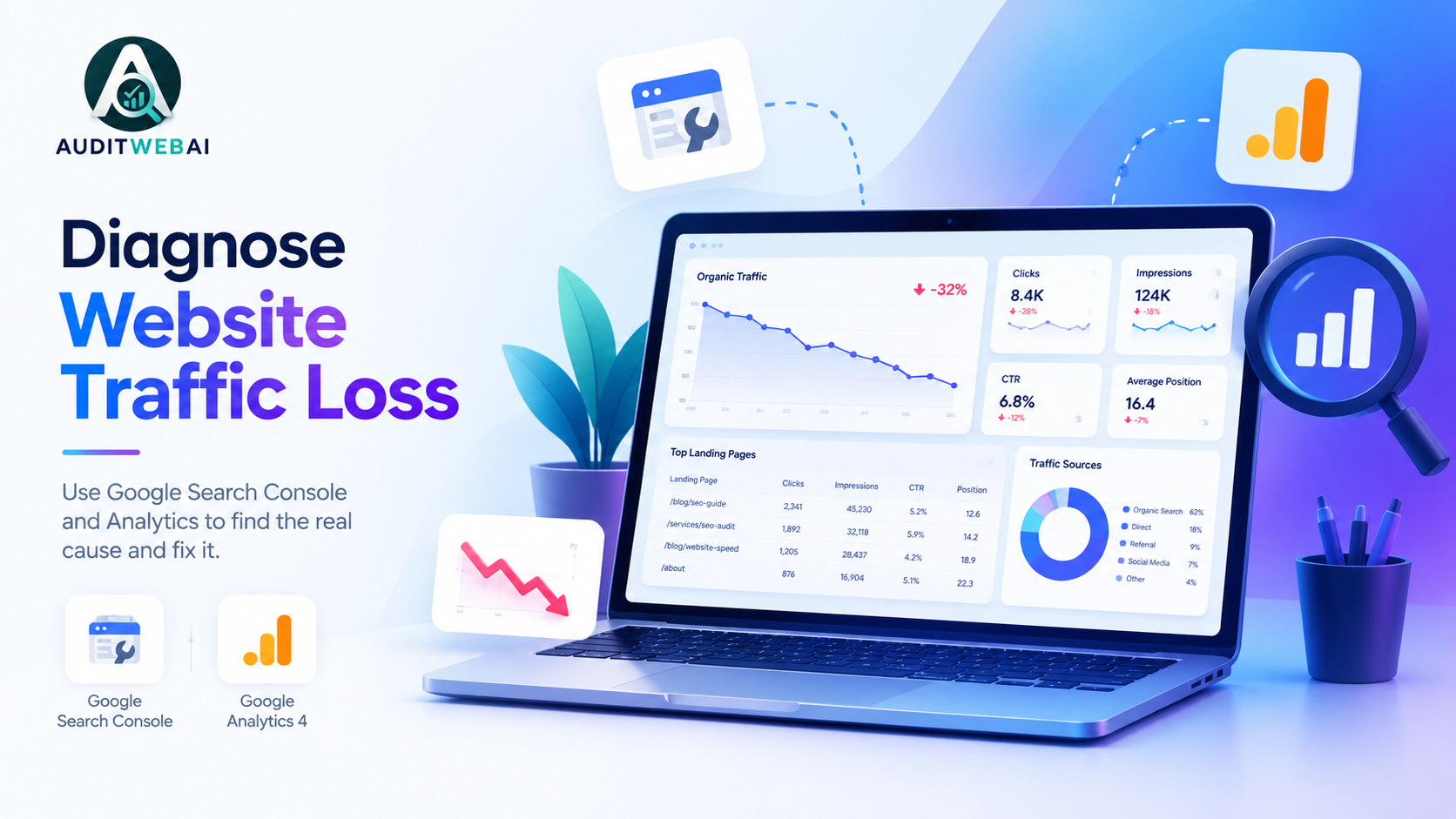
Website traffic data tells a story, but the numbers alone rarely explain what went wrong. You might notice fewer visitors in Google Analytics, declining clicks in Google Search Console, or a sudden change in the performance of one important landing page. Each situation requires a different investigation.
The most effective way to diagnose website traffic loss is to combine search performance data with website analytics. Google Search Console helps you understand what happens before visitors reach your website from Google Search. Google Analytics 4 (GA4) helps you understand what happens after they arrive, including engagement, traffic sources, and conversions.
In this guide, you will learn how to compare the two platforms, identify affected pages, distinguish search visibility problems from measurement errors, and build a practical investigation workflow. Instead of guessing why traffic changed, you will have a repeatable process for finding evidence and deciding what to check next.
Quick distinction: Search Console measures Google Search performance, while Analytics measures activity recorded on your website or app. Their numbers are not expected to match exactly because they use different measurement systems.
What You Need Before Investigating Website Traffic
Before drawing conclusions, make sure you have access to the relevant data and that both tools are configured correctly.
- Google Search Console: Access to the correct website property and its Performance report.
- Google Analytics 4: Access to reports showing traffic acquisition, landing pages, and conversions.
- A comparison period: A recent period with declining traffic and an equivalent earlier period.
- Affected URLs: A list of pages that appear to have lost clicks, sessions, or conversions.
- A change history: Notes about deployments, redesigns, content updates, redirects, campaigns, and tracking changes.
If your website is new or has limited traffic, daily numbers may fluctuate significantly. Use a longer comparison period where appropriate and avoid treating a small change as proof of a serious SEO problem.
Step 1: Define Exactly Which Traffic Has Declined
The first step is to define the problem. A decline in total website traffic is not necessarily a decline in organic search traffic. Visitors may come from direct visits, referral links, email campaigns, paid advertising, social media, or organic search.
Open GA4 and navigate to Reports > Acquisition > Traffic acquisition. Examine the traffic-source dimensions and identify which channel has changed.
For example, a website may experience a decline in social media sessions while its Google organic traffic remains stable. In that situation, changing title tags or rewriting SEO content would not address the actual problem.
| Observed change | First investigation |
|---|---|
| Total sessions declined | Identify which channel or source declined. |
| Google organic sessions declined | Compare GA4 with Search Console clicks. |
| Search clicks declined | Inspect impressions, CTR, queries, and pages. |
| Traffic is stable but sales declined | Investigate conversion tracking and the conversion journey. |
| Only one landing page declined | Inspect that URL, its queries, and its recent changes. |
Write down the exact symptom before investigating further. A clear problem statement makes it easier to choose the right report and avoid unnecessary changes.
Step 2: Compare the Correct Date Ranges
Incorrect date comparisons can produce misleading conclusions. Comparing a busy holiday period with an ordinary week, for example, may make a normal demand change look like an SEO failure.
In Google Search Console, open the Performance report for Search results. Select a suitable date range and use the comparison option to compare it with the previous equivalent period.
In GA4, select the same calendar periods when possible. Compare the same number of days and account for differences in weekdays, holidays, promotions, and seasonal demand.
For an initial investigation, compare the last 28 complete days with the preceding 28 days. If the change appears gradual, compare longer periods, such as the latest three months against the preceding three months. For annual seasonality, compare with the equivalent period from the previous year when sufficient data is available.
Also remember that the newest Search Console data can be preliminary. Allow reporting data to settle before making decisions based on the latest day.
Example: Calculate the change correctly
Suppose a website received 10,000 organic clicks during the earlier period and 7,500 during the later period.
Percentage change = ((Current period − Previous period) / Previous period) × 100
In this example, the change is −25%. This tells you the size of the decline, but not its cause. You still need to determine whether it came from fewer impressions, a lower click-through rate, changes in rankings, or another factor.
Step 3: Analyze Google Search Console Performance
Google Search Console is the primary source for understanding how your website performs in Google Search. Its Performance report provides metrics including clicks, impressions, click-through rate (CTR), and average position.
Start with the overall Search results report, then examine the Queries and Pages dimensions. These views help you move from a broad site-level trend to the specific searches and URLs associated with the change.
Understand the four main metrics
- Clicks: How often users clicked through to your website from Google Search results.
- Impressions: How often your website appeared in the relevant Google Search results under Google's reporting rules.
- CTR: Clicks divided by impressions.
- Average position: The average position of the topmost result from your site, calculated according to Search Console's reporting rules.
These metrics should be evaluated together. Average position is an aggregate measurement and can change because the mix of queries and pages has changed. Do not diagnose a ranking problem from average position alone.
Pattern A: Impressions and clicks both declined
If impressions and clicks have both decreased, your website may be appearing less often for relevant searches. Possible explanations include lower search demand, reduced visibility for important queries, changes in the pages Google displays, or indexing and technical problems.
Open the Pages tab and identify the URLs with the largest impression losses. Then inspect the Queries tab to see which search terms contributed to those changes.
Check whether the decline affects the entire website, one content category, a group of URLs, or a single page. A site-wide change and a decline limited to one article require different investigations.
Pattern B: Impressions remained stable but clicks declined
If impressions are relatively stable but clicks have dropped, examine CTR and the queries associated with the affected pages.
Your page may still appear in search results, but fewer users may be choosing it. Investigate whether the title and snippet accurately represent the page, whether the query intent has changed, and whether the search results now include different features or stronger competing results.
Do not rewrite a title simply because CTR is lower. First confirm that the decline is meaningful, compare similar queries and positions, and make sure the proposed change better communicates the page's actual value.
Pattern C: Clicks declined and average position worsened
This pattern can indicate that your pages are appearing lower for some searches. Filter the Pages report to an affected URL, then inspect its Queries data.
Look for important queries that have lost visibility or position. Review the current search results to understand whether competing pages offer more useful information, better satisfy the query, or address a different search intent.
Before making content changes, check whether the page is indexed and whether its canonical, redirects, internal links, and recent content changes are correct.
Pattern D: Average position improved but clicks declined
This can happen when your website starts appearing for a different mix of queries, impressions change, or CTR decreases. An improved site-wide average does not guarantee that every important keyword gained visibility.
Compare individual pages and queries instead of relying on the overall average. The goal is to identify which searches and landing pages actually changed.
Step 4: Find the Exact Pages Responsible for the Decline
Once you have identified a search-performance change, determine which URLs account for the largest share of the difference.
In Search Console, select the Pages tab and compare clicks and impressions between the two periods. Export the data if needed and calculate the change for each URL. Prioritize pages that previously generated meaningful traffic or support an important business goal.
For each affected URL, record:
- Clicks and impressions before and after the change.
- CTR and average position for the same comparison periods.
- The main queries associated with the page.
- The country and device categories affected.
- Any recent changes to the URL, content, metadata, internal links, or page template.
Consider this illustrative example:
| Landing page | Earlier clicks | Current clicks | Change |
|---|---|---|---|
| /blog/guide-a | 2,000 | 1,800 | −10% |
| /blog/guide-b | 1,500 | 750 | −50% |
| /service-page | 800 | 760 | −5% |
In this example, Guide B deserves the earliest investigation because it lost the largest proportion of its clicks. However, percentage decline is not the only consideration. A commercial page with fewer clicks may be more important to the business than an informational article with higher traffic.
For more systematic technical checks, use our complete website SEO audit guide to review crawling, indexing, metadata, internal links, and other important website elements.
Step 5: Use GA4 to Investigate Organic Landing Pages
Search Console shows Google Search performance, but it does not provide a complete picture of what users do after they reach your website. GA4 helps investigate that second part of the journey.
Open Reports > Acquisition > Traffic acquisition to examine sessions by traffic source. Look for Google organic traffic using the available session-source dimensions and compare the same date ranges you used in Search Console.
Next, open the Landing page report. Depending on your GA4 report configuration, you can add a source/medium dimension or use a filter to focus on Google organic sessions.
Review landing pages with the largest decline in organic sessions. Compare them with Search Console's affected URLs. This creates a useful cross-check between search clicks and the sessions recorded after visitors arrive.
What the comparison can tell you
- Search clicks and organic sessions both declined: Investigate search visibility, landing pages, and possible technical issues.
- Search clicks are stable but organic sessions declined sharply: Check Analytics tagging, consent configuration, redirects, landing-page behavior, and report filters.
- Organic sessions are stable but engagement declined: Investigate the visitor experience, page relevance, performance, and the actions users take.
- Sessions are stable but conversions declined: Check conversion events, forms, checkout functionality, offer changes, and traffic quality.
These are diagnostic clues, not absolute rules. Differences between the tools can also result from attribution, reporting definitions, time zones, consent settings, and other measurement differences.
Step 6: Check Whether Analytics Tracking Is Working
A tracking problem can create the appearance of a traffic loss even when the number of visitors has not changed by the same amount.
This is especially important if GA4 sessions suddenly fall to nearly zero while Search Console clicks remain relatively stable.
Review the following items:
- Tracking installation: Confirm that the GA4 tag or Google Tag Manager configuration is present on the affected pages.
- Recent deployments: Check whether a theme update, redesign, script change, or code deployment removed or altered the tracking code.
- Consent configuration: Check whether a new consent banner or consent-management change affected analytics collection.
- Tag firing: Use the available Google tag diagnostics or Tag Assistant to confirm that tags fire as expected.
- Realtime data: Visit your own website and check whether the expected activity appears in GA4, allowing for processing and configuration behavior.
- Filters and reporting settings: Confirm that report filters, comparisons, time zones, and channel definitions have not changed.
- Conversion events: Verify that important events still fire correctly and that key events are configured as intended.
Do not compare only total clicks against total sessions and expect identical numbers. Instead, look for substantial changes in trends and investigate differences that cannot be explained by the tools' measurement methods.
Step 7: Segment the Data by Country, Device, and Query
Aggregate reports can hide problems that affect only one audience segment. Once you have found the affected pages, narrow the analysis.
Country analysis
In Search Console, use the Countries dimension to determine whether the decline is concentrated in one market. Compare the same countries in GA4 where appropriate.
A decline limited to one country may relate to changes in regional search demand, language relevance, local competition, or how a page serves that audience. Confirm the pattern before making country-specific changes.
Device analysis
Compare mobile, desktop, and tablet performance. If mobile clicks or sessions have declined more sharply than desktop, test the affected pages on actual mobile devices.
Check navigation, loading behavior, readability, interactive elements, forms, and layout stability. A mobile-specific issue may not be obvious when testing only on a desktop browser.
Our Core Web Vitals guide explains how to investigate loading performance, responsiveness, and visual stability.
Query analysis
For pages with declining search clicks, compare the queries that previously generated traffic with those generating impressions now. Look for changes in query relevance, CTR, and position.
Some queries may have lost demand while others may have become more competitive. A page may also receive impressions for a broader range of searches without earning clicks from its most valuable terms.
Use the data to identify a specific opportunity, such as clarifying a section, updating outdated information, or improving the match between the page and the query. Avoid changing content simply to include additional keywords.
Step 8: Inspect Technical SEO on Affected URLs
If Search Console shows that important pages lost impressions or clicks, verify that search engines can still access and index those pages as intended.
Start with URL Inspection in Search Console for representative affected URLs. Review the reported indexing status and test live availability where appropriate. Then check the page itself.
- Does the URL return the expected HTTP status code?
- Does the page load successfully without server errors?
- Is it accidentally blocked by robots.txt or marked with a noindex directive?
- Does its canonical tag identify the intended preferred URL?
- Do redirects lead to the correct destination?
- Does the XML sitemap contain the appropriate canonical URL?
- Can visitors and crawlers discover the page through relevant internal links?
- Did a recent migration or deployment change the URL structure?
Do not assume every traffic decline is a technical issue. These checks are most useful when the evidence points toward indexing, crawling, availability, or a change to important URLs.
If you find broken internal links or incorrect destinations, follow our guide on how to find and fix broken links.
Step 9: Build a Traffic Diagnosis Worksheet
Recording evidence makes it easier to distinguish a confirmed problem from a possible explanation. Create a spreadsheet with one row per affected landing page or query group.
| Field | What to record |
|---|---|
| URL or query | The affected page or search term. |
| Comparison dates | The earlier and later date ranges. |
| Search Console change | Clicks, impressions, CTR, and average position. |
| GA4 change | Organic sessions, landing-page performance, and relevant conversions. |
| Segment | Country, device, or other relevant dimension. |
| Technical status | Indexing, canonical, redirects, HTTP status, and tracking checks. |
| Evidence | Report exports, screenshots, deployment records, or test results. |
| Next action | The smallest useful test or correction to perform. |
Use the worksheet to rank problems by business impact, strength of evidence, and effort required. A confirmed tracking failure or an important page accidentally marked noindex usually deserves attention before a minor metadata adjustment.
Step 10: Turn Your Findings Into an Action Plan
After collecting evidence, group your findings into three categories: confirmed technical or measurement problems, search-performance changes that need further investigation, and normal variations that do not require immediate intervention.
Priority 1: Fix confirmed critical issues
Examples include a key page returning a server error, an incorrect redirect, an accidental noindex directive, or missing Analytics tracking after a deployment. Correct the underlying problem and verify that the page or tracking behavior works as expected.
Priority 2: Improve affected landing pages
Where the data suggests lower CTR or reduced rankings, review the relevant queries, search intent, competing results, content accuracy, internal links, and page experience. Make changes that solve a clearly identified problem rather than applying broad changes across the website.
Priority 3: Monitor and measure
Record what you changed and when. Continue comparing equivalent periods and monitor the affected URLs, queries, sessions, and conversions. Search engines may take time to recrawl pages or reflect changes in search results, so an immediate recovery is not guaranteed.
For a wider technical review, use our step-by-step SEO audit checklist to organize additional checks.
Common Mistakes When Diagnosing Traffic Loss
1. Comparing mismatched periods
Comparing a seasonal peak with an ordinary week can exaggerate a decline. Use equivalent date ranges and account for demand changes.
2. Assuming every decline is a Google penalty
A decline can have many explanations. Check the data and relevant technical signals before attributing the change to an algorithm update or penalty.
3. Relying only on total website sessions
Total sessions combine different sources. Segment the data to identify the channel, landing page, or audience responsible for the change.
4. Treating Search Console and GA4 as identical datasets
The platforms measure different events and use different reporting methods. Compare trends and investigate material discrepancies rather than expecting exact numerical matches.
5. Changing too many pages at once
Large, simultaneous changes make it difficult to understand which action helped. Start with evidence-backed, high-impact corrections and document each change.
6. Ignoring conversions
Traffic is not the only business outcome. A smaller number of qualified visitors may still produce useful results. Monitor relevant leads, purchases, sign-ups, and other meaningful actions alongside traffic.
Frequently Asked Questions
How do I diagnose website traffic loss?
Start by identifying which traffic channel declined. Compare equivalent periods in Google Search Console and GA4, identify affected landing pages and queries, check tracking, and inspect technical SEO only where the evidence suggests it may be relevant.
Why does Google Search Console show more clicks than GA4 shows organic sessions?
Clicks and sessions are different measurements. Differences can result from session definitions, consent settings, attribution, time zones, page-loading behavior, and other reporting differences. Compare trends and check tracking configuration before drawing conclusions.
Which Google Search Console metrics should I check first?
Begin with clicks, impressions, CTR, and average position. Then inspect the Pages and Queries dimensions to find the URLs and searches responsible for the change. Use country and device segments if the decline appears concentrated in a particular audience.
How can I tell whether my website has an SEO problem or an Analytics tracking problem?
If Search Console clicks and GA4 organic sessions both decline, investigate search performance and the affected pages. If Search Console remains relatively stable while GA4 falls sharply, check Analytics tags, consent settings, filters, and deployment history. Neither pattern proves a cause on its own.
How long should I wait before evaluating an SEO change?
There is no universal recovery period. Monitor the relevant URLs and queries over time, allow for crawling and reporting delays, and compare equivalent periods. Avoid judging the success of a change from a single day's data.
Can a website audit help identify traffic problems?
Yes. A website audit can help uncover technical issues involving page accessibility, metadata, redirects, internal links, and performance. However, an audit score alone cannot explain every traffic decline. Combine audit findings with Search Console and Analytics evidence.
Should I delete pages that have lost organic traffic?
Not automatically. First identify why the page declined and whether it still serves users or business goals. Updating useful content, correcting technical problems, or consolidating genuinely overlapping pages may be more appropriate than deleting a page without evidence.
Conclusion: Diagnose With Data Before Making Changes
Website traffic loss is easier to investigate when you separate search performance from on-site behavior. Google Search Console helps identify changes in clicks, impressions, CTR, average position, queries, and pages. GA4 helps determine which acquisition channels and landing pages changed and whether those changes affected engagement or conversions.
The key is to move from a broad symptom to a specific, testable explanation. Compare equivalent date ranges, isolate affected pages, validate tracking, investigate relevant technical issues, and document your findings before changing your SEO strategy.
You do not need to fix every possible issue at once. Start with the problems that have the strongest evidence and the greatest potential impact, then monitor the results.
Find Website Issues With AuditWebAI
Want to investigate your website's technical health? Run a website audit to identify potential SEO, performance, accessibility, and user-experience issues that deserve attention.