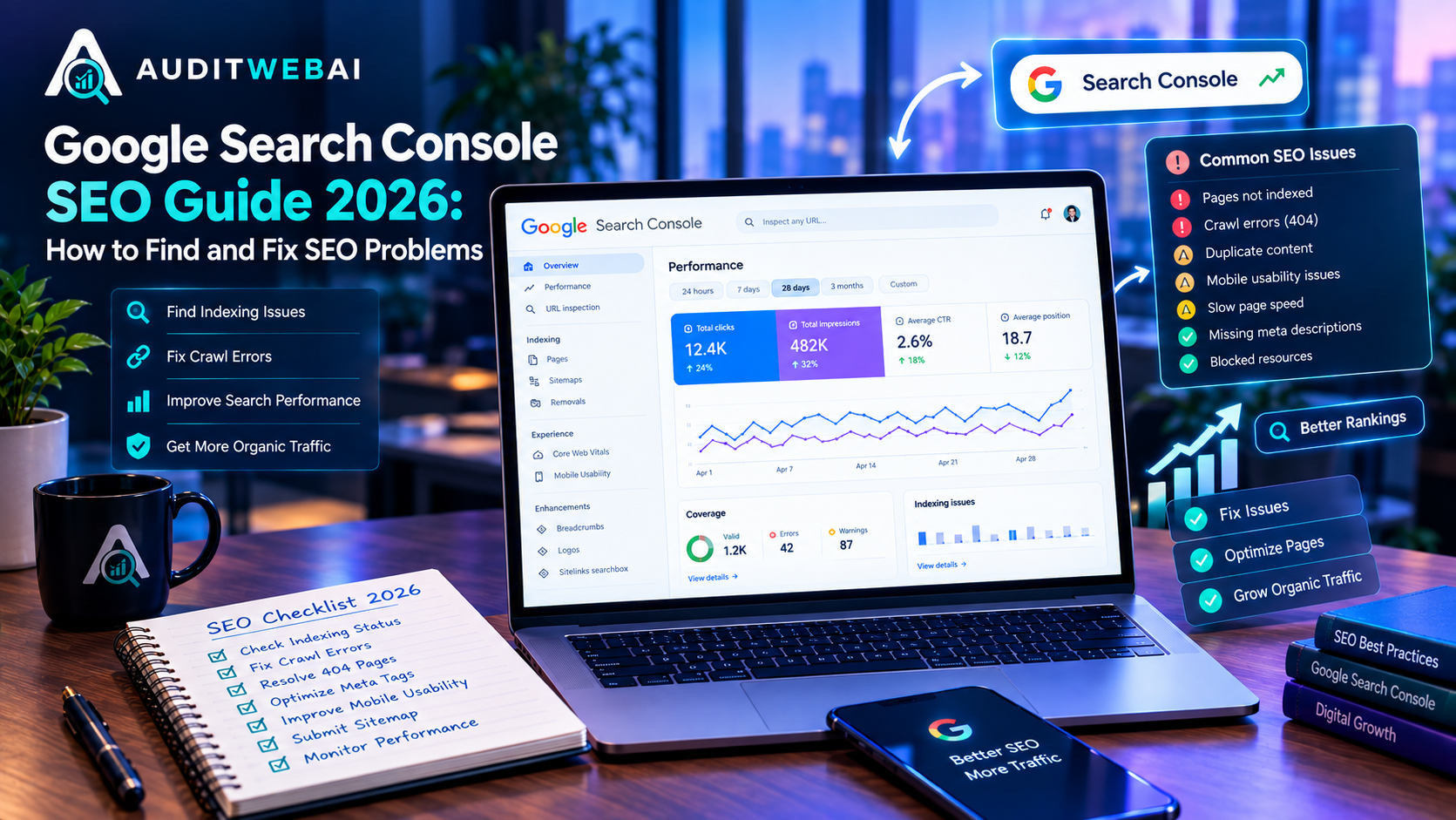
Google Search Console SEO Guide 2026: How to Find and Fix SEO Problems
If you want to understand how your website is performing in Google Search, Google Search Console is one of the most useful free tools available to website owners.
It can help you understand which pages Google knows about, what search queries are generating impressions and clicks, whether important URLs are indexed, and whether Google has discovered technical problems affecting your website.
But simply connecting your website to Search Console is not enough.
The real value comes from knowing what to look for, what the data means, and what action to take next.
A website may have thousands of impressions but very few clicks. Another site may have pages that are technically accessible but still not indexed. A blog post may receive impressions for several relevant searches but sit too far down the results to attract meaningful traffic.
Search Console can help you identify these situations.
In this guide, you'll learn how to use Google Search Console as part of a practical SEO workflow in 2026.
You will learn how to:
-
Check whether important pages are indexed
-
Find indexing problems
-
Understand clicks and impressions
-
Find keyword opportunities
-
Analyze pages that are already getting visibility
-
Inspect individual URLs
-
Identify pages that need better content
-
Find technical SEO problems
-
Decide which SEO tasks to fix first
-
Build a repeatable Search Console workflow
The goal is not to chase a single SEO score.
The goal is to use real search data to make better decisions about your website.
What Is Google Search Console?
Google Search Console is a free Google service that helps website owners monitor and troubleshoot their website's presence in Google Search.
It provides information about things such as:
-
Search queries
-
Clicks
-
Impressions
-
Average position
-
Indexing
-
URL inspection
-
Sitemaps
-
Page experience
-
Security issues
-
Manual actions
-
Search-related technical problems
Google describes Search Console as a tool for monitoring, testing, and debugging websites in Google Search.
It is particularly useful when you want to understand why a page is not appearing as expected or which pages and queries are already generating visibility.
However, Search Console is not a tool that guarantees higher rankings.
Instead, it gives you information that can help you decide what to investigate and improve.
Why Google Search Console Matters for SEO
Many website owners make SEO decisions based only on assumptions.
They may think:
"I need more keywords."
Or:
"My website needs more backlinks."
Or:
"Google isn't ranking my website."
But without data, it is difficult to know which problem actually deserves attention.
Search Console gives you another approach.
Instead of asking:
"What should I optimize?"
you can ask:
"What is Google already showing my website for, and where are the opportunities?"
For example, imagine one of your blog posts has:
-
8,000 impressions
-
120 clicks
-
Average position around 18
That page may already have search visibility.
Instead of immediately creating another article, you could investigate whether the existing page needs:
-
Better search-intent coverage
-
Improved title
-
Better internal links
-
More useful examples
-
Stronger content structure
-
Better coverage of related questions
The correct action depends on what the data shows.
This is why Search Console can become part of an ongoing SEO process rather than something you check only when traffic suddenly falls.
Google Search Console SEO: The Four Metrics You Should Understand
The Performance report contains several important metrics.
The four most commonly discussed are:
-
Clicks
-
Impressions
-
Click-through rate
-
Average position
Understanding the difference between them is essential.
1. Clicks
A click represents a visit to your website from a Google Search result.
For example, if your page receives 100 clicks, that means users clicked from Google Search to your website 100 times during the selected reporting period.
Clicks are useful, but don't evaluate SEO using clicks alone.
A page may have low clicks because it has very few impressions.
Another page may have thousands of impressions but a low click-through rate.
Those are very different problems.
2. Impressions
An impression means your website appeared in Google's search results for a search query.
For example, suppose your article appears for:
If users see your result, that contributes to the page's search visibility.
A page can therefore have many impressions without receiving many clicks.
This is useful information.
It may indicate that Google already considers your page relevant enough to show for certain searches, while the result may still need improvement to attract more clicks.
3. Click-Through Rate
Click-through rate, or CTR, compares clicks with impressions.
A simple way to understand it is:
CTR = Clicks ÷ Impressions × 100
For example:
-
1,000 impressions
-
50 clicks
CTR would be:
5%
CTR should not be treated as a universal target.
Search behavior varies depending on:
-
Query type
-
Search position
-
Brand searches
-
Device
-
Search features
-
Competition
-
Search intent
Instead of asking:
"Is my CTR good?"
Ask:
"Which pages have unusually strong or weak CTR compared with their impressions and position?"
That question is more useful.
4. Average Position
Average position is a Search Console metric describing the average position of your site's highest result for the queries where it appeared.
It is useful for identifying trends, but it should not be treated as an exact ranking report for every individual search.
Search results can vary based on:
-
Query
-
Device
-
Location
-
Search features
-
Personalization
-
Other search conditions
Therefore, don't obsess over moving from position 12 to position 11 on a single day.
Look for patterns across:
-
Pages
-
Queries
-
Dates
-
Countries
-
Devices
How to Find Your Best SEO Opportunities in Search Console
One of the most useful Search Console workflows is finding pages that already have search visibility.
Go to:
Performance → Search results
Then review your:
-
Queries
-
Pages
-
Clicks
-
Impressions
-
CTR
-
Position
Start by looking for pages with significant impressions but relatively few clicks.
These pages deserve investigation.
For example:
| Situation | What it may suggest | What to investigate |
|---|---|---|
| High impressions + low clicks | Search visibility without enough traffic | Title, snippet relevance, intent |
| Low impressions + good position | Limited search demand or narrow topic | Keyword/topic targeting |
| Many queries + low positions | Broad relevance but weak competitiveness | Content depth and intent |
| Good clicks + declining impressions | Visibility may be falling | Content freshness and technical issues |
| Page has almost no impressions | Google may have limited visibility | Indexing, content, internal links |
These are investigation signals, not automatic diagnoses.
Always examine the actual page before making major changes.
How to Find Keyword Opportunities
Search Console can reveal queries that your website is already appearing for.
This is extremely useful for content optimization.
Suppose you publish an article about:
Website SEO Audit
You may discover that the page is also receiving impressions for related searches such as:
-
website SEO checker
-
SEO website analysis
-
technical SEO audit
-
website audit checklist
-
SEO audit tool
-
website SEO score
Some of these queries may already be properly covered by the article.
Others may reveal questions that deserve clearer explanations.
The important point is:
Do not add every Search Console query to your page.
That creates keyword stuffing.
Instead, ask:
-
Is the query genuinely related to the page?
-
Does the page already answer the searcher's question?
-
Would adding useful information improve the article?
-
Does the query represent a different search intent?
-
Would another page be a better destination?
If the query represents a completely different intent, creating a separate article may be better.
How to Find Pages That Need Better SEO
Search Console becomes especially useful when you analyze individual pages.
Open the Pages section of the Performance report.
Look for pages that:
-
Receive impressions but few clicks
-
Have declining visibility
-
Rank for unexpected queries
-
Receive traffic but have weak conversion performance
-
Are important business pages but receive little organic visibility
-
Have strong impressions but weak CTR
-
Are older articles that have stopped growing
Don't automatically rewrite every page.
Prioritize pages based on business value and opportunity.
For example:
High priority
A service page that generates impressions but almost no clicks.
Medium priority
A blog post ranking around the middle of page two for relevant searches.
Lower priority
An old article with almost no impressions and little business relevance.
This prioritization prevents SEO work from becoming endless.
How to Use URL Inspection for SEO Troubleshooting
The URL Inspection tool is one of the most useful features in Google Search Console.
It allows you to inspect a specific URL and see information about Google's indexed version of that page.
You can also run a live test to check the current page.
Google's documentation explains that URL Inspection can help you troubleshoot why a page is not on Google, check indexability, view the selected canonical, and request indexing for a page.
For example, suppose you publish:
https://example.com/blog/new-seo-guide
but cannot find it in Google.
Enter the URL into Search Console.
You may see information related to:
-
Whether the URL is indexed
-
Crawling
-
Indexing
-
Canonical URL
-
Page availability
-
Structured data
-
Mobile-related information
-
Google-selected canonical
What to Check When a Page Is Not Indexed
If Search Console reports that a page is not indexed, don't immediately request indexing.
First understand the reason.
Possible situations include:
-
The URL is unknown to Google
-
Crawling is blocked
-
The page has a noindex directive
-
The page is a duplicate
-
Google selected another canonical URL
-
The page returned an error
-
The page has not yet been crawled
-
The page is not considered appropriate for indexing
Google's Page Indexing documentation specifically notes that not every non-indexed URL is a problem. Duplicate pages, intentionally blocked pages, and removed pages may correctly remain outside the index.
The goal is not:
"Get 100% of URLs indexed."
The goal is:
"Make sure the important canonical pages are discoverable, crawlable, and eligible to appear in Google."
How to Fix a Page That Should Be Indexed
If an important page isn't indexed, use this checklist.
Step 1: Check the URL
Open the page in your browser.
Make sure it loads normally.
Check for:
-
Server errors
-
Redirect problems
-
Login requirements
-
Broken resources
-
Incorrect URL
Step 2: Inspect the URL
Open URL Inspection in Search Console.
Review the indexing information.
Step 3: Check Robots.txt
Make sure your robots.txt file isn't accidentally preventing Google from crawling the page.
A development rule that worked on a staging website can become a serious problem if it is accidentally deployed to production.
Step 4: Check Noindex
Inspect the page source and response headers for an unintended noindex directive.
A page with a noindex instruction should not be expected to appear in Google's index.
Step 5: Check Canonical
Make sure the canonical URL points to the correct version.
For example, if these URLs represent the same content:
/seo-guide
and
/seo-guide?source=homepage
your canonical strategy should clearly identify the preferred URL.
Google may choose a different canonical from the one you declare, so inspect the Google-selected canonical when troubleshooting.
Step 6: Add Internal Links
Important pages should not exist in isolation.
Link to them from relevant pages on your website.
For example:
SEO Guide
↓
Technical SEO Guide
↓
Website Performance Guide
↓
Website Audit
Internal links help visitors discover related resources and help search engines understand relationships between pages.
Step 7: Request Indexing When Appropriate
After fixing a real issue, you can use URL Inspection to request indexing for an individual URL.
However, requesting indexing does not guarantee that Google will index or rank the page.
Google also notes that indexing can take time, and sitemap submission is more appropriate when you need to communicate many URLs rather than repeatedly submitting individual pages.
How to Use the Page Indexing Report
The Page Indexing report provides a broader view of URLs Google has found and attempted to index.
It can help you identify patterns across your website.
For example, you may discover:
-
Many pages are indexed
-
Several pages are excluded
-
Important pages are not indexed
-
Duplicate URLs exist
-
Some pages return errors
-
Google has discovered fewer URLs than expected
For smaller websites, you don't necessarily need to spend all your time inside the Page Indexing report.
Google's own documentation suggests that smaller sites can often begin with simple site: searches and URL Inspection, while larger sites may benefit more from the Page Indexing report.
How to Check Your XML Sitemap
An XML sitemap helps search engines discover important URLs on your website.
Your sitemap should generally contain URLs that you want Google to crawl and potentially index.
Before submitting a sitemap, check that it does not contain:
-
Broken URLs
-
Redirecting URLs
-
Duplicate URLs
-
URLs blocked from crawling
-
Unwanted parameter variations
-
Non-canonical pages
For a blog, your sitemap should be updated as new articles are published.
After publishing a new article, verify that the correct URL eventually appears in your sitemap.
Search Console Can Help You Discover Content Ideas
Search Console is not only a troubleshooting tool.
It can also become a content research tool.
Imagine your website has an article about:
technical SEO
Search Console may show that the page receives impressions for several related searches.
Some of those searches may reveal questions you have not addressed clearly.
You can use this information to improve the existing article or create a supporting article.
For example:
Main topic
Technical SEO
Supporting topics
-
Technical SEO audit
-
Crawlability
-
Indexing
-
Robots.txt
-
XML sitemap
-
Canonical URLs
-
Website speed
-
Core Web Vitals
This creates a connected topic cluster rather than a collection of unrelated posts.
How to Use Search Console Without Keyword Stuffing
One of the biggest mistakes website owners make is treating every query in Search Console as a keyword that must be inserted into an article.
Don't do this.
Suppose Search Console shows:
-
"seo audit website"
-
"website seo audit"
-
"seo audit tool"
-
"how to audit seo"
-
"website audit seo"
You don't need to repeat all of these phrases throughout the page.
Instead, create a clear article that naturally explains the subject.
Use related terminology where it helps the reader.
Google should be able to understand the topic from the complete page, not from a list of repeated phrases.
The same principle applies to titles and headings.
Write for the person who will read the page first.
How to Use Search Console to Improve Existing Blog Posts
A simple content-refresh workflow can look like this.
Step 1: Find pages with impressions
Open:
Performance → Pages
Look for pages that receive meaningful impressions.
Step 2: Open the page
Click the URL and review its queries.
Step 3: Identify relevant queries
Look for searches that are genuinely related to the article.
Step 4: Compare the query with the page
Ask:
-
Does the article answer this question?
-
Is the answer easy to find?
-
Is the section too short?
-
Is an example missing?
-
Does the page satisfy the search intent?
Step 5: Improve the content
Add useful information only where it improves the article.
Possible improvements include:
-
Better explanation
-
Practical example
-
Step-by-step instructions
-
Comparison table
-
Troubleshooting section
-
FAQ
-
Better internal links
-
Updated information
Step 6: Monitor again
After making meaningful improvements, continue monitoring the page in Search Console.
Don't expect every change to produce an immediate ranking increase.
SEO performance changes over time.
How to Find Pages With High Impressions but Low Clicks
This is one of the easiest opportunities to investigate.
Imagine:
Page A
-
20,000 impressions
-
100 clicks
The page is receiving visibility but very few users are visiting.
Before changing anything, investigate:
1. Search intent
Does the page actually satisfy what people are searching for?
2. Search result title
Does the title accurately communicate the benefit of opening the page?
3. Content relevance
Is the page actually useful for the queries generating impressions?
4. Competition
Are competing results offering something more useful or specific?
5. Search features
Are other search features affecting how users interact with the results?
Do not change the title simply to make it more clickable if the new title would misrepresent the page.
Accuracy comes first.
How to Find Pages That Are Losing Search Visibility
Search Console can also help identify declining performance.
Compare different date ranges in the Performance report.
For example:
Previous period
-
10,000 impressions
-
500 clicks
Current period
-
6,000 impressions
-
280 clicks
That doesn't automatically mean there is a technical SEO problem.
Investigate the change.
Possible explanations can include:
-
Search demand changed
-
Rankings changed
-
Competitors improved
-
Content became outdated
-
Search intent changed
-
A technical issue appeared
-
The page lost internal-link support
-
Google changed the search results layout
Look at the affected queries and pages rather than assuming the cause.
How to Combine Search Console With a Website SEO Audit
Search Console tells you what Google is seeing in search.
A website audit can help you investigate the underlying website issues.
For example:
Search Console
→ Page has impressions but low clicks
Website audit
→ Title is unclear
Content review
→ Search intent isn't fully satisfied
Internal linking review
→ Important article has very few internal links
Performance review
→ Page is slow on mobile
This creates a much better workflow than relying on one metric.
If you want to check the broader technical health of your website, you can also use the complete SEO audit guide on AuditWebAI.
Google Search Console SEO Checklist
Use this checklist regularly.
Search Performance
-
Check clicks
-
Check impressions
-
Review CTR
-
Review average position
-
Review top pages
-
Review top queries
-
Compare date ranges
-
Look for unusual traffic changes
Indexing
-
Check important pages
-
Inspect new pages
-
Investigate unexpected exclusions
-
Check canonical URLs
-
Check crawlability
-
Check noindex directives
-
Check important pages are internally linked
Sitemap
-
Sitemap exists
-
Sitemap contains correct URLs
-
URLs use HTTPS
-
Removed pages are not unnecessarily included
-
Redirecting URLs are avoided
-
Canonical URLs are correct
Content
-
Search intent is clear
-
Important questions are answered
-
Content is useful
-
Content is original
-
Internal links are relevant
-
Titles accurately describe pages
-
Pages are updated when necessary
Technical SEO
-
HTTPS works correctly
-
Important pages are crawlable
-
Important pages are indexable
-
No major server errors exist
-
Redirects work correctly
-
Mobile experience works properly
-
Core Web Vitals are monitored
-
Broken links are addressed
A Simple Monthly Google Search Console SEO Workflow
You don't need to spend hours in Search Console every day.
For many website owners, a structured monthly review is a practical starting point.
Week 1: Check Search Performance
Review:
-
Top pages
-
Top queries
-
Impressions
-
Clicks
-
CTR
-
Position
Find the pages with the biggest opportunities.
Week 2: Review Indexing
Inspect important pages.
Check:
-
New articles
-
Important service pages
-
Recently updated pages
-
Pages that should be indexed but aren't
Week 3: Improve Content
Choose a small number of pages.
Improve:
-
Search intent
-
Content clarity
-
Examples
-
Internal linking
-
Titles
-
Useful supporting information
Avoid rewriting everything at once.
Week 4: Check Technical Health
Review:
-
Sitemap
-
Indexing issues
-
Core Web Vitals
-
Mobile experience
-
Broken links
-
Redirects
-
Server errors
Then start the next cycle.
This creates a continuous SEO improvement process.
Common Google Search Console SEO Mistakes
Mistake 1: Checking rankings every day
Search visibility changes naturally.
Daily fluctuations don't necessarily indicate a problem.
Look for meaningful patterns.
Mistake 2: Treating average position as an exact ranking
Average position is a useful performance metric, but it is not a perfect representation of where every user sees your page.
Use it together with queries, pages, impressions and clicks.
Mistake 3: Requesting indexing repeatedly
Requesting indexing isn't a replacement for fixing technical or content problems.
If a page has a noindex directive, duplicate content issue, or other problem, repeated requests won't solve the underlying issue.
Mistake 4: Trying to index every URL
Not every URL needs to be indexed.
Duplicate pages, intentionally excluded pages and removed URLs may correctly remain outside the index.
Mistake 5: Adding every query to your article
Search Console queries are clues.
They are not instructions to repeat keywords throughout your content.
Mistake 6: Ignoring users
Search data can tell you where opportunities exist.
It cannot replace good judgment.
A page should still be:
-
Useful
-
Accurate
-
Easy to understand
-
Easy to navigate
-
Relevant to the reader
What Should You Fix First?
If Search Console shows dozens of possible issues, don't try to fix everything simultaneously.
Use a simple priority system.
Priority 1: Important pages cannot be indexed
Fix:
-
noindex problems
-
robots.txt problems
-
server errors
-
canonical issues
-
crawlability problems
Priority 2: Important pages have poor search visibility
Review:
-
Search intent
-
Content quality
-
Internal links
-
Page structure
-
Competition
Priority 3: Pages have visibility but weak clicks
Investigate:
-
Search-result relevance
-
Title
-
Content alignment
-
Query intent
Priority 4: Performance problems
Review:
-
Core Web Vitals
-
Large images
-
JavaScript
-
CSS
-
Server response
-
Third-party scripts
Priority 5: Minor optimization
After major problems are handled, work on smaller improvements.
This approach helps prevent wasting time on low-impact changes while important technical problems remain unresolved.
How AuditWebAI Fits Into This Workflow
Google Search Console is excellent for understanding your website's search visibility and Google's view of individual URLs.
But it is only one part of a complete website review.
A broader website audit can help you look at several areas together, including:
-
Technical SEO
-
On-page SEO
-
Website performance
-
Accessibility
-
User experience
-
Broken links
-
Page structure
For example, if Search Console shows that an important page is receiving impressions but not enough clicks, you can use a website audit to check whether there are technical or on-page issues that deserve attention.
AuditWebAI can be used as part of that broader website health-check workflow.
The important point is to use the audit to identify problems and then make informed improvements rather than chasing a single score.
Final Thoughts
Google Search Console becomes much more valuable when you stop treating it as a dashboard and start using it as an SEO decision-making tool.
Don't simply look at your total clicks and leave.
Use the data to ask better questions:
-
Which pages are getting visibility?
-
Which searches are bringing impressions?
-
Which pages are not indexed?
-
Are important URLs technically accessible?
-
Which pages have strong impressions but weak clicks?
-
Which topics are already showing search demand?
-
Which content deserves an update?
-
Are there technical problems affecting important pages?
Then prioritize the work that has the clearest potential value.
SEO is not about finding one magic setting inside Search Console.
It is a continuous process of understanding your website, understanding your audience, improving useful content, maintaining technical health, and measuring what happens over time.
If you want to start with the technical side, run a website audit and use the results together with your Search Console data. This gives you a more complete picture of what may be limiting your website's search visibility.
Frequently Asked Questions
Is Google Search Console free?
Yes. Google Search Console is a free Google service for website owners and managers.
Can Google Search Console improve my rankings automatically?
No. Search Console provides data and diagnostic tools. It does not automatically optimize your website or guarantee ranking improvements.
How often should I check Google Search Console?
There is no universal schedule. Active websites can monitor important changes regularly, while a monthly structured review can be a practical starting point for smaller websites.
Why does my website have impressions but no clicks?
Your pages may be appearing for searches but receiving few clicks. Investigate the queries, average position, search intent, page title, and whether the content matches what users are looking for.
Why is my new blog post not appearing in Google?
There can be several reasons. The page may not have been discovered or crawled yet, it may be blocked, have a noindex directive, have a canonical issue, or simply need more time. Use URL Inspection to investigate the specific URL.
Does requesting indexing guarantee that Google will index my page?
No. Requesting indexing asks Google to crawl the URL, but it does not guarantee indexing or search visibility. Google recommends fixing underlying issues and using sitemaps when communicating many URLs.
Should every page on my website be indexed?
No. Some URLs should intentionally remain outside the index, including certain duplicate, filtered, removed, or deliberately blocked pages. The important goal is to make your important canonical pages discoverable and eligible for indexing.
What is the difference between Google Search Console and an SEO audit tool?
Search Console provides Google-specific search and indexing information about your website. An SEO audit tool can analyze broader website factors such as technical SEO, page structure, performance, accessibility and other website-health signals.
Can Search Console tell me which keywords I should target?
It can reveal queries for which your website already receives impressions and clicks. These queries can provide useful content ideas, but they should be interpreted according to search intent rather than copied into pages as a keyword list.
Should I use Search Console before publishing a new blog?
Yes. Search Console can help you understand existing search demand, identify related queries, evaluate your current content, and later measure how the new article performs.
Your Practical Next Step
Open Google Search Console and start with these three areas:
1. Performance → Search results
Find pages with strong impressions but limited clicks.
2. URL Inspection
Check your most important new or updated pages.
3. Page Indexing
Look for unexpected indexing problems affecting important URLs.
Then combine those findings with a broader website SEO audit to decide what should actually be fixed first.
The objective isn't to make every number in Search Console look perfect.
The objective is to make your website more discoverable, more useful, technically healthier, and more relevant to the people you want to reach.