Most websites today still fail basic accessibility checks — missing alt text, low-contrast text, and forms that don't work with a keyboard are the most common culprits. That's no longer just a UX problem. With the EU's Accessibility Act now in force and US ADA-related lawsuits rising every year, an accessibility audit has quietly become a legal and business necessity, not a nice-to-have.
Here's what an accessibility audit actually checks, what WCAG 2.2 requires, and a practical checklist you can run through today.
What Is a Website Accessibility Audit?
A website accessibility audit is a structured review of your site to confirm it can be used by people with visual, motor, auditory, or cognitive disabilities. It's measured against the Web Content Accessibility Guidelines (WCAG) — currently WCAG 2.2, at Level AA, which is the tier referenced by most accessibility laws worldwide.
Unlike a one-time accessibility checklist, a full audit combines automated scanning (fast, catches contrast/alt-text/structure issues at scale) with manual testing (keyboard navigation, screen reader flow, and judgment-based checks automation can't catch).
Why Accessibility Audits Matter in 2026
- Legal risk is rising. The EU's Accessibility Act (EAA) is already in effect for businesses operating in Europe, and US ADA Title II compliance deadlines for public entities are landing through 2026-2027 — with private-sector lawsuits following the same WCAG 2.1/2.2 AA standard as the benchmark.
- It's a massive, underserved market. People with disabilities represent a significant share of global consumers, and an inaccessible site actively turns that traffic away.
- It overlaps with SEO. Alt text, semantic headings, descriptive links, and clean structure — the same things accessibility requires — are also core on-page SEO signals.
What's New in WCAG 2.2
WCAG 2.2 builds on 2.1 and adds new success criteria, including:
- Focus Not Obscured — a keyboard focus indicator can't be hidden behind sticky headers or cookie banners.
- Target Size (Minimum) — clickable elements should be at least 24x24 CSS pixels so they're easy to tap.
- Dragging Movements — any drag-based interaction needs a simple tap/click alternative.
- Accessible Authentication — login shouldn't force a memory-based test (like solving a puzzle); offering something like an emailed magic link satisfies this.
The 10-Point Website Accessibility Audit Checklist
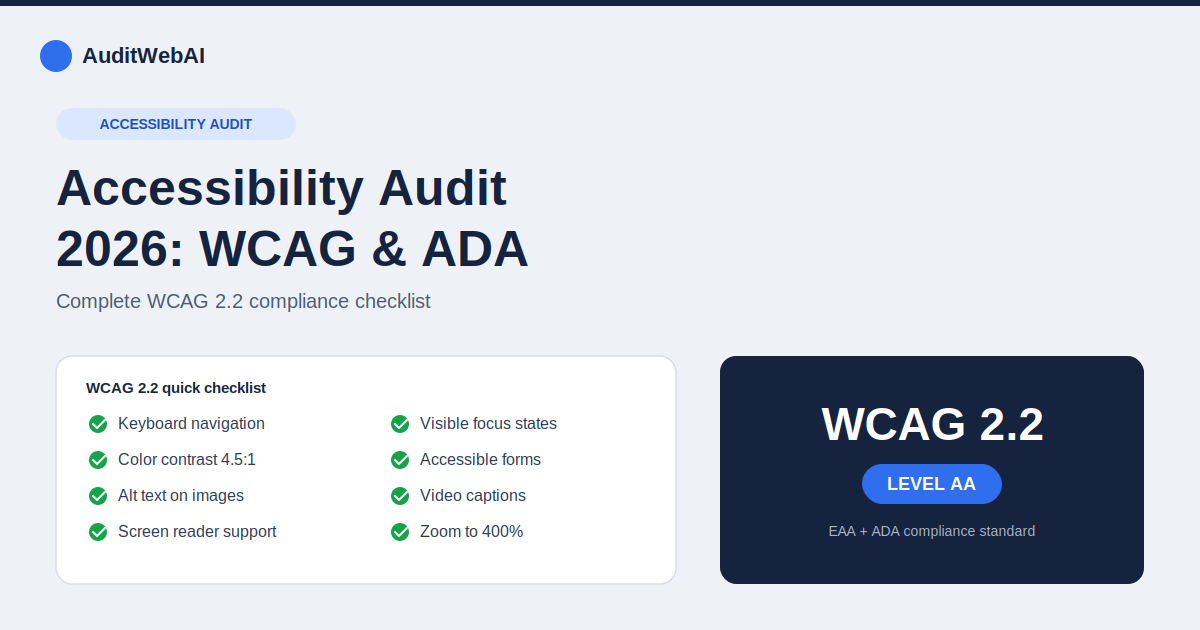
- Keyboard navigation — every link, button, form, and menu should be reachable and operable using only the Tab, Enter, and arrow keys, in a logical order, with no keyboard traps.
- Color contrast — body text needs at least a 4.5:1 contrast ratio against its background; never use color alone to convey meaning (e.g. "red fields are required").
- Alt text on images — every meaningful image needs descriptive alt text; purely decorative images should have empty alt attributes so screen readers skip them.
- Semantic heading structure — one H1 per page, headings in logical order (no skipping from H2 to H4), so screen reader users can navigate by heading.
- Screen reader compatibility — test with NVDA, JAWS, or VoiceOver to confirm content reads in a sensible order with correct names, roles, and states.
- Forms — every input needs a visible, programmatically-linked label; error messages should be announced, not just shown in red text.
- Visible focus states — a clear focus outline on every interactive element, never removed with
outline: nonewithout a replacement. - Multimedia captions — videos need captions, and audio content needs a transcript.
- Responsive and zoom-friendly — content should reflow properly up to 400% zoom without breaking layout or losing functionality.
- ARIA used correctly — ARIA roles should only be added when native HTML can't do the job; misused ARIA is now one of the most common error sources on the web.
How to Run Your First Accessibility Audit
- Start with automated scanning to catch the low-hanging fruit — contrast failures, missing alt text, and broken heading structure — across every page at once.
- Layer in manual testing — unplug your mouse and navigate your key pages with only a keyboard, then repeat with a screen reader.
- Prioritize by impact and effort — fix Level A issues first (they're the baseline), then work through Level AA.
- Document your process — keeping a record of what you tested and fixed matters both for legal defensibility and for tracking progress over time.
- Re-audit regularly — accessibility drifts every time you ship new pages or components, so treat this as ongoing monitoring, not a one-time project.
Frequently Asked Questions
Is WCAG legally required?
WCAG itself isn't a law, but it's the technical standard almost every accessibility law points to — including the EU's Accessibility Act and ADA-related litigation in the US — so meeting WCAG 2.1/2.2 AA is the practical way to reduce legal exposure.
What's the difference between an accessibility checklist and a full audit?
A checklist is a self-assessment tool you can run yourself for ongoing awareness. A full audit goes deeper — combining automated and manual testing with detailed issue reports and prioritized fixes.
Does accessibility actually affect SEO?
Yes, indirectly but meaningfully. Descriptive alt text, clean semantic HTML, and well-structured headings help both screen readers and search engine crawlers understand your page — the two goals reinforce each other.
Check Your Site's Accessibility and SEO Together
Fixing accessibility issues one page at a time is slow — and most sites don't know where they stand until they're tested. Run a free AuditWebAI scan to catch accessibility, technical SEO, and performance issues in one report. For the full picture, pair this with our Technical SEO Audit Checklist and step-by-step SEO audit guide.